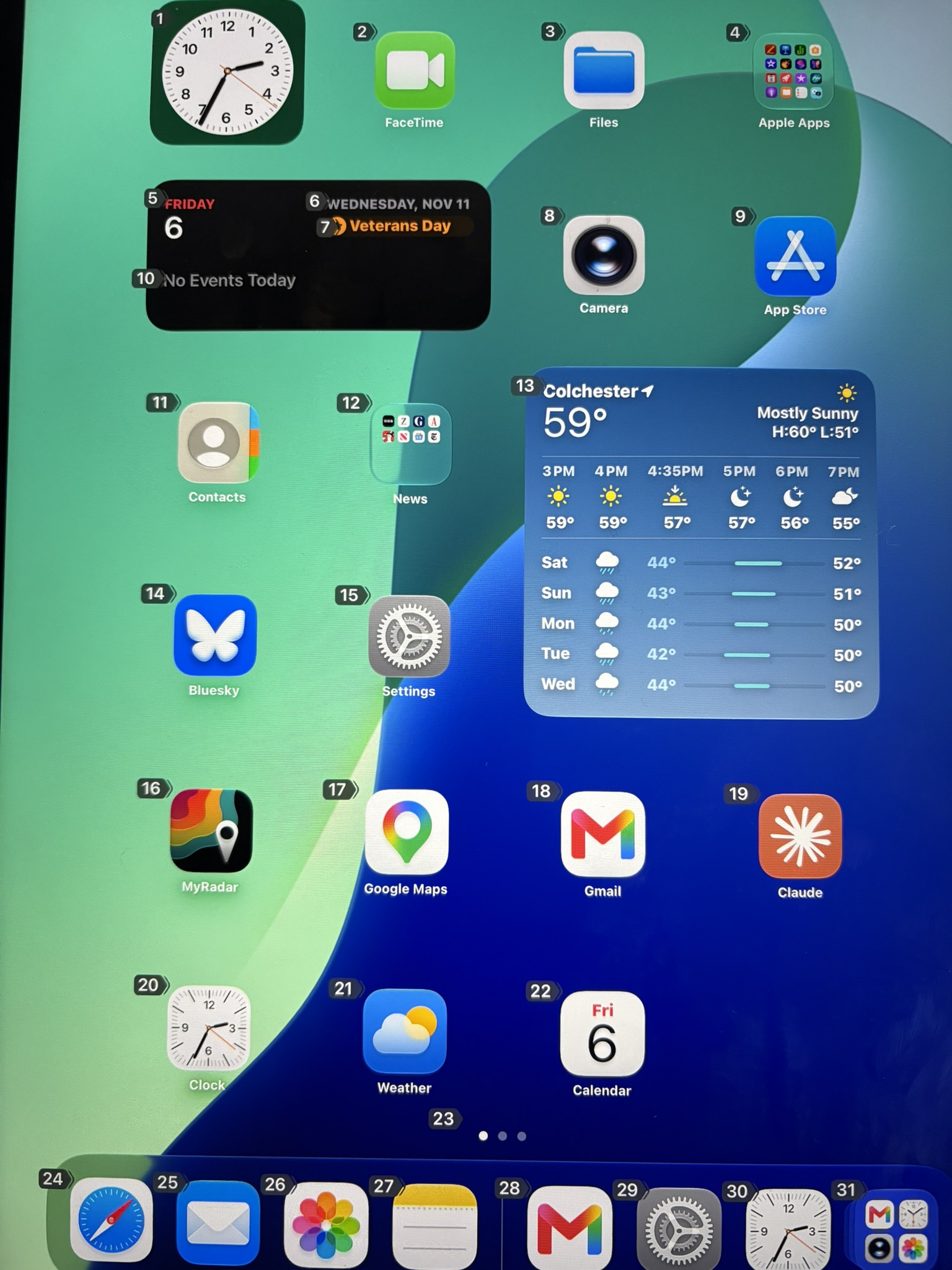
I was at the Red Cross today, donating platelets. This is a process where they take blood from one arm and run it through a machine to extract the platelets, and then put the red blood cells and plasma back into the other arm. This demands that you have both arms imobilized, so they actually tie your arms down to the armrests. This was the second time I did it, so I knew the routine. The first time I had brought my iPad, and was distressed to find that I would have both arms strapped down, so would be unable to scroll or tap the screen.
Turns out the Apple iOS has had voice control since iOS 13 in 2019. You can access this via Siri; say “Hey Siri, turn on Voice Control”. Although Siri can open apps on its own, to manipulate the apps you really need to add Voice Control to get full control of the screen.
Once Voice Control is enabled, you see a microphone at the top of the screen.
You can do the following:
* Open apps: “Open Safari,” “Go home,” “Open App Switcher”
* Tap things: “Tap Done,” “Tap Back,” or the name of any button
* When you don’t know a button’s name: “Show numbers” puts a number on everything tappable, then say “Tap 7.” “Show grid” works for anything else.
* Web pages: “Scroll down,” “Scroll up,” “Go back,” “Tap address bar,” then dictate the address and say “Tap Go”
*Typing: just speak to dictate; “Delete that,” “Select previous word,” and so on
* Help: “What can I say?” shows the full command list
I made sure that Voice Control was turned on before I arrived at the Red Cross, and practiced with the commands beforehand. It worked surprisingly well. Once both arms were immobilized, I was able to:
* Open the New York Times app, choose and read articles, and read artlcle comments
* Open and scroll through the Instagram app.
* Read and respond to email
* Read and dictate messages in iMessage.
If you don’t know where to click, you can say “Show numbers”, and any clickable area on the screen, or any button will have a number next to it. Then just say “Tap 47” or whatever the number is. Number 1 is almost always the close or back button at the top left of the window.


Leave a Reply